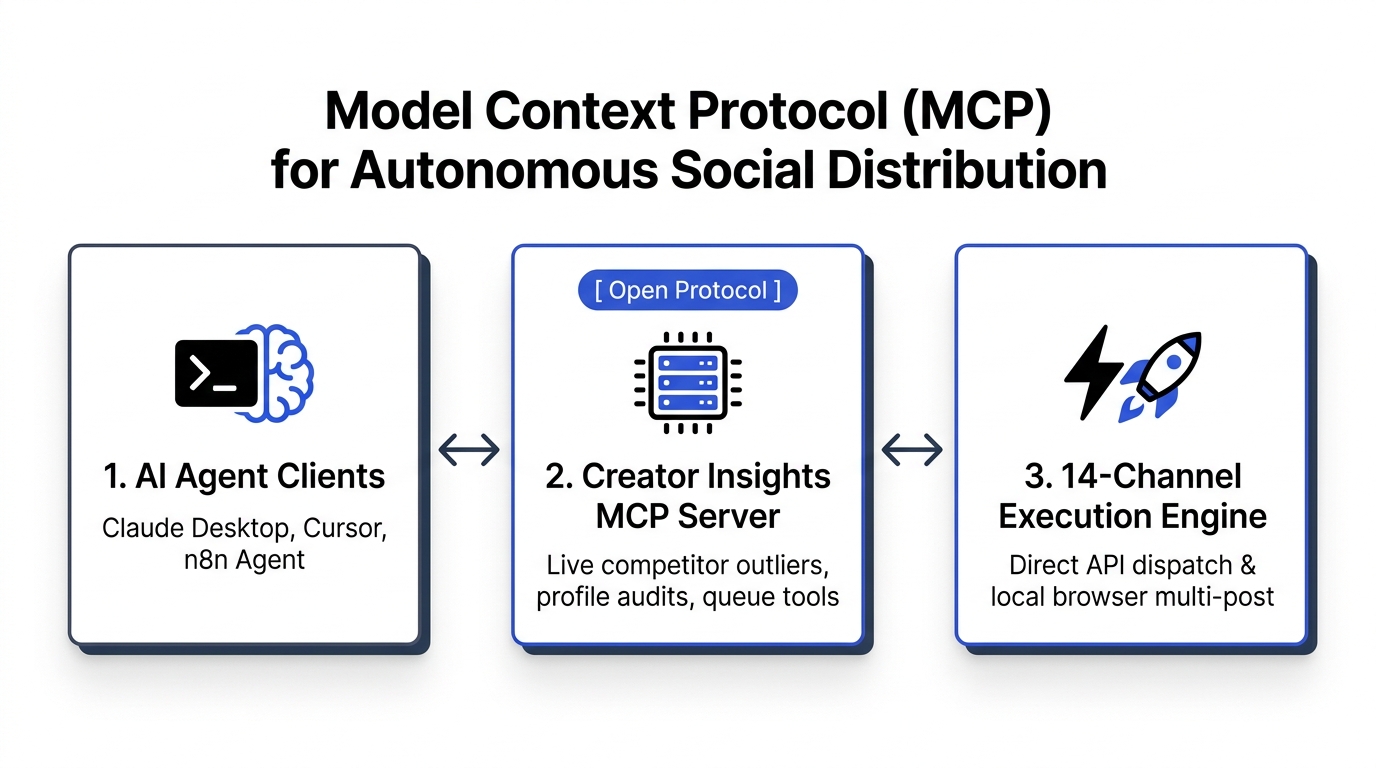

Connecting Claude Desktop to real social media through the Model Context Protocol (MCP) requires configuring a Streamable HTTP connector pointing to an authorized MCP server endpoint. Once linked, Claude can inspect public profile metrics, extract video transcripts, analyze competitor ad libraries, and schedule posts across connected networks directly from your chat window.
For over a year, working with large language models felt like talking to an exceptionally smart colleague trapped in a windowless room. You asked Claude to critique a video hook. It did a decent job.
Then you asked it to check how your last five Instagram Reels performed.
Silence. Or worse: a polite hallucination claiming it had no internet access.
You had to manually screenshot your analytics dashboard, save the JPEG to your desktop, drag the image into Claude, and wait for OCR parsing. If you wanted to study competitor video transcripts, you spent forty-five minutes downloading YouTube subtitles, pasting messy text files into prompt windows, and fighting token limits.
The Model Context Protocol eliminates that clerical headache completely. By giving your AI client a standardized tool contract, Claude can query live platform APIs, retrieve real post data, and trigger publishing actions while you sip your morning coffee.
Why Copy-Pasting Data into AI Chats Stalls Growth
Relying on manual text exports and static screenshots slows down content production and introduces data errors.
Traditional copy-paste AI workflows break down in several ways:
- Language models cannot verify whether public post metrics changed twenty minutes ago.
- Pasting twenty messy transcripts eats thousands of context tokens before you even type your prompt.
- You have to jump between browser tabs, developer scrapers, and chat windows constantly.
- Chat models cannot schedule approved drafts to your accounts without third-party webhook middleware.
Instead of treating Claude like a disconnected text generator, MCP turns your desktop assistant into an active operator. It reads source material on demand and queues finished posts back to your workspace.
Traditional Copy-Paste Prompts vs. MCP Tool Integration
Direct protocol connections replace brittle manual file handling with structured API execution:
| Capability | Manual Chat Prompts | Creator Insights MCP Connector |
|---|---|---|
| Data Recency | Limited to static text and outdated screenshots | Real-time queries against public platform data |
| Transcript Access | Manual download and messy VTT cleaning | Automated extraction via fetch_youtube_transcript |
| Ad Intelligence | Slow manual searches through ad library web UIs | Direct creative inspection across Meta, TikTok, and Google |
| Publishing Action | Copy-pasting text into scheduling tools | Direct queueing via publish_multi_platform_post |
| Token Efficiency | Huge prompt bloat from raw pasted text | Targeted tool responses containing only needed data |
| Client Support | Browser-only text interfaces | Works across Claude Desktop, ChatGPT, Cursor, and Codex |
Step-by-Step: Connecting Claude Desktop in Under 3 Minutes
Setting up the Creator Insights MCP connector requires adding a short configuration snippet to your local client settings.
Here is the exact setup procedure:
1. Open Your Claude Desktop Configuration
Open Claude Desktop on your computer. Go to the app settings menu and select Developer. Click Edit Config to open your claude_desktop_config.json file in your preferred text editor.
2. Add the Remote MCP Server Endpoint
Insert the Creator Insights server block into your configuration file:
{
  "mcpServers": {
    "creator-insights": {
      "url": "https://api.creatorinsights.in/mcp",
      "headers": {
        "x-api-key": "YOUR_CREATOR_INSIGHTS_API_KEY"
      }
    }
  }
}
Replace YOUR_CREATOR_INSIGHTS_API_KEY with the API key generated inside your Creator Insights workspace settings. If you use OAuth-compatible clients, you can authorize the connection through the standard web login flow instead.
3. Restart Claude Desktop and Verify Tools
Completely close and reopen Claude Desktop. Look for the small hammer or plug icon near the prompt input box.
You should see the active tool suite, including:
- Profile and video fetchers:
fetch_insta_posts,fetch_tiktok_posts,fetch_youtube_videos - Transcript extraction:
fetch_youtube_transcript,fetch_insta_transcript - Comment research:
fetch_youtube_comments,fetch_insta_comments,fetch_reddit_comments - Ad intelligence:
search_facebook_ads,search_tiktok_ads,search_google_advertisers - Content publishing:
publish_multi_platform_post
4. Run Your First Interactive Social Research Prompt
Type a prompt that combines research and drafting in a single instruction:
"Search for top-performing YouTube videos about 'creator economy tax write-offs' using Creator Insights. Pull the transcript of the most viewed result, outline its 3-second hook structure, and draft a 60-second counter-angle script for my connected LinkedIn and Bluesky accounts."
Claude calls the tools sequentially. It fetches the video list, reads the spoken transcript, extracts the pedagogical flow, and presents an editable script draft for your final review.
What MCP Can Do (And What Requires the Browser Extension)
Understanding the boundary between API-connected tools and browser workflows prevents configuration errors.
The Creator Insights MCP Server handles automated research, public data extraction, and API-based publishing to connected YouTube, Instagram, LinkedIn, Facebook, Pinterest, and Bluesky accounts.
Browser-only community interactions use the Chrome extension. If you want to post conversational replies on Substack Notes or Threads topics, use the Engage Comment Assistant to review drafts directly on those networks.
Integrating MCP with Your Full Creator Stack
Autonomous AI workflows deliver maximum value when backed by visual workspaces and unified distribution.
Use Popular Videos to discover high-performing clips across Instagram, YouTube, and TikTok, or set up Competitor Tracking to monitor industry rivals every morning.
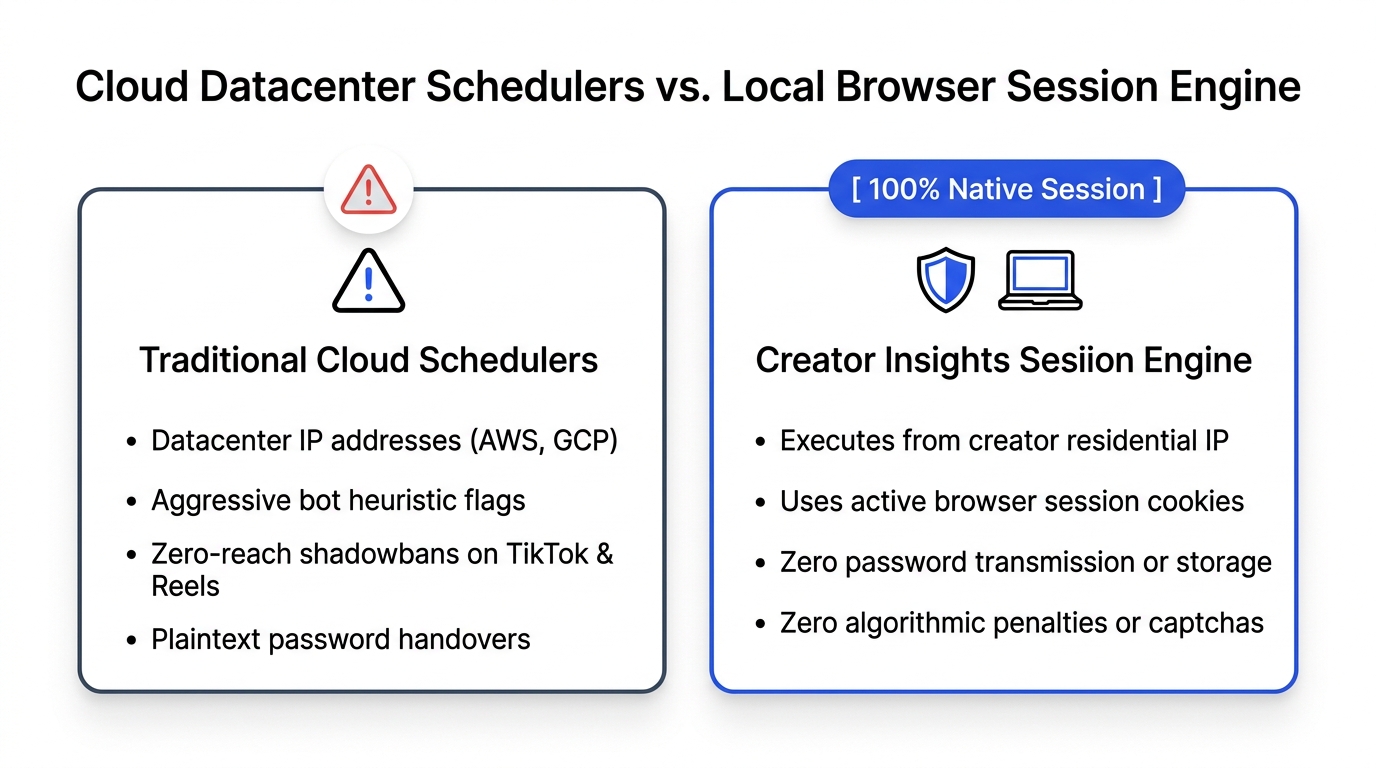
When your scripts are recorded, use the Multi-Post Composer to distribute native video posts across fourteen networks without platform rate limits. With MCP running locally in Claude Desktop, your research, scriptwriting, and multi-network publishing stay connected in a single workflow.
Frequently Asked Questions
Which AI clients support the Creator Insights MCP server?
The MCP server works with Claude Desktop, Claude Code, ChatGPT, Codex, and Cursor. You can connect using Streamable HTTP via OAuth where supported, or by supplying a private API key in clients that support custom headers.
Does MCP publishing post directly to my social accounts without review?
You maintain full control over the approval step. You can instruct your AI assistant to generate drafts for your inspection first. Posts only publish when the tool receives an explicit schedule or publish parameter that you approved.
Can the MCP ad tools create and run paid advertising campaigns?
No. The ad tools search public Meta, TikTok, Google, and LinkedIn ad libraries to retrieve advertiser and creative details. They are designed for competitive intelligence and script analysis, not paid media buying.
What platforms support direct API publishing through MCP?
MCP publishing currently supports connected YouTube, Instagram, LinkedIn, Facebook, Pinterest, and Bluesky accounts. Text-only community engagement on X, Threads, and Substack Notes runs through the browser extension.