I spent forty-five minutes copying URLs last Tuesday. My wrist ached.
I had found a goldmine of thirty-two lecture videos from an MIT systems design conference on YouTube. Google NotebookLM's "Audio Overview" feature—the AI co-hosts that turn raw source notes into lively, conversational podcasts—had become my favorite way to review technical material on dog walks.
I opened NotebookLM. I clicked Add Source. I clicked YouTube. I pasted URL number one.
Then I clicked Add Source again. Switched tabs. Copied URL number two. Pushed back into NotebookLM. Pasted. Waited for the green checkmark.
By link eleven, Chrome lagged. By link twenty, I accidentally pasted the same video twice. By link twenty-eight, Google threw a temporary client rate-limit error, forcing me to sit there staring at a spinning grey circle while my coffee went cold.
NotebookLM natively accepts single YouTube URLs. What it refuses to do is ingest an entire playlist or channel catalog in one click. If you paste a raw playlist URL, NotebookLM often indexes only a placeholder link rather than downloading individual video transcripts.
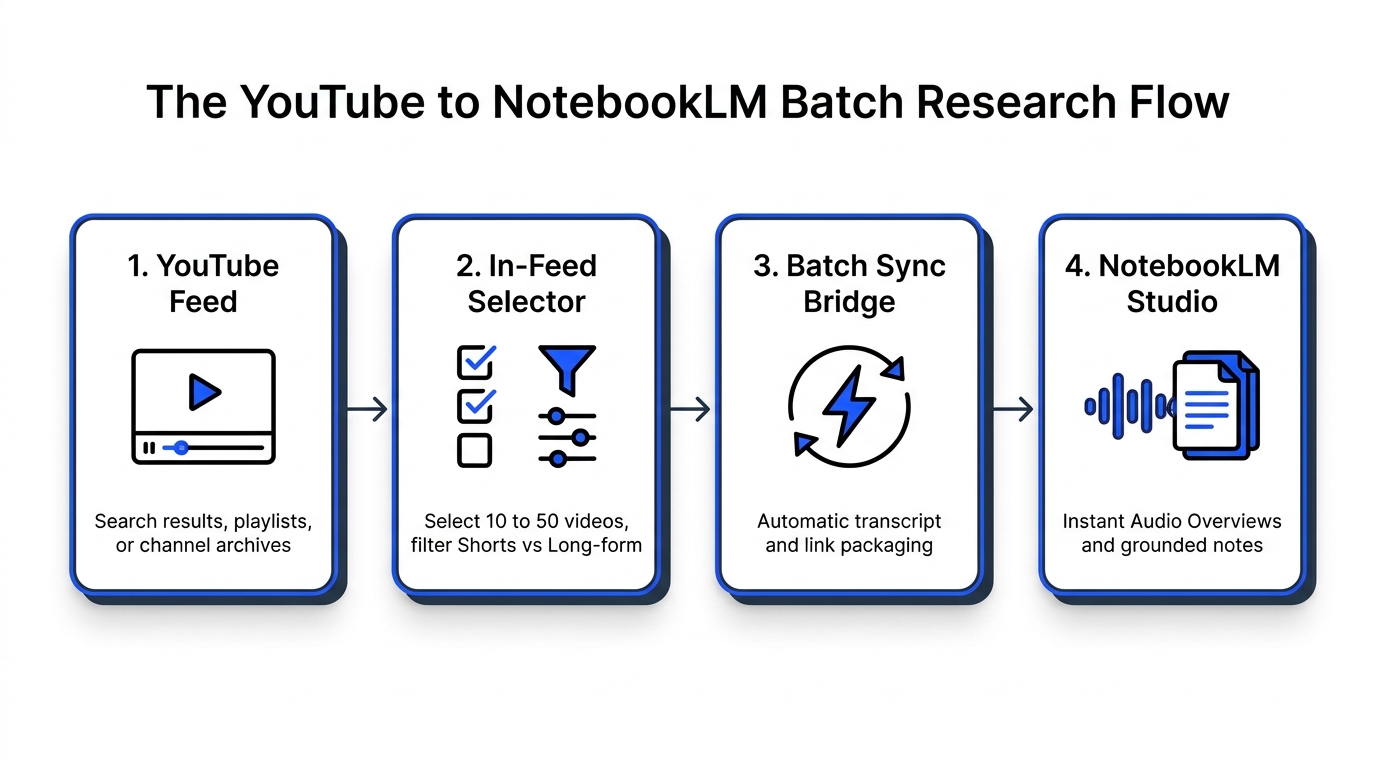
Here is the exact setup I built to bypass that manual grind. It lets you capture ten to fifty videos directly from any YouTube search, playlist, or channel feed and send them straight into a fresh NotebookLM notebook in under thirty seconds.
The Core Problem: Why Native NotebookLM Chokes on Playlists
NotebookLM limits users to fifty sources per notebook.
Fifty sources provides plenty of context for deep research. Synthesizing thirty expert discussions gives the Gemini 1.5 Pro engine enough grounded material to generate brilliant, forty-minute Audio Overviews packed with citations.
The friction is link ingestion:
- Single URL Bottleneck: Google's native modal expects one link per prompt. Pasting fifty links means clicking through fifty modal windows.
- Playlist Link Blindness: Dropping a playlist URL (
youtube.com/playlist?list=...) frequently registers as a single empty web bookmark. NotebookLM does not loop through the underlying video IDs to extract speech transcripts. - Shorts Feed Chaos: If you want to study vertical video formats in your niche, hunting down individual Shorts links requires opening each Short, clicking share, copying the URL, and cleaning tracking query parameters (
?si=...).
You do not need to write custom Python scrapers or buy expensive cloud transcription API credits to solve this.
Comparison: Manual Copying vs. Browser Extension Dock
Here is what happens when you compare the manual copy-paste workflow against our dedicated extension dock:
| Operational Step | Doing It Manually (30 Videos) | Using Creator Insights YouTube to NotebookLM |
|---|---|---|
| Ingestion Time | 25 to 35 minutes of tab-switching | 15 seconds (1-click batch selection) |
| Shorts vs Long-form Filtering | Manual link inspection in spreadsheets | 1-click toggle directly in YouTube feed |
| Channel Catalog Access | Clicking through channel uploads page by page | Select up to 50 videos filtered by view count |
| Transcript Hygiene | Risk of dead links or unparsed playlist markers | Clean source packaging passed directly to Google session |
| Tool Cost | Free, but eats half an hour of creative work | 100% Free via Chrome extension with zero credit deduction |
The 3-Step Setup: Moving YouTube Research into NotebookLM
We built the YouTube to NotebookLM Tool directly into our free Creator Insights browser extension to turn YouTube into an active research laboratory.
Here is how to set it up:
1. Enable the Free Extension
Install the extension from the Chrome Web Store. When you open any YouTube search results page, creator channel, or playlist, a discreet floating selection dock docks on the right edge of your browser window.
2. Filter Videos and Set Your Quota
Search for your topic—for instance, "autonomous AI agents architecture" or "b2b creator distribution."
Use the in-feed filters to narrow the list:
- Toggle between long-form tutorials and Shorts.
- Sort by view count to isolate the highest-performing explanations.
- Click the checkboxes next to the videos you want, or click Select All (Top 30).
The dock automatically scrubs away messy tracking tokens, referral parameters, and timestamp flags from the URLs.
3. Click "Send to NotebookLM"
Hit the blue action button. The extension bundles the selected video metadata and opens your NotebookLM dashboard, injecting the sources directly into your active project.
Google parses the transcripts in the background. Within sixty seconds, your source bank shows thirty green checkmarks, ready for instant querying.
What to Do Once Videos Are in NotebookLM
Having thirty video transcripts inside NotebookLM opens up powerful workflows that were impossible when videos were trapped in separate tabs:
1. Generate Deep Dive Audio Overviews (AI Podcast)
Click Notebook Guide in NotebookLM, then click Generate under Audio Overview.
The two AI co-hosts read the transcripts across all thirty videos, cross-reference the speakers' arguments, debate the conflicting points, and produce a high-fidelity 15-minute podcast. Listening to thirty lectures during your morning commute without watching a single frame changes how you learn.
2. Extract Hidden Niche Objections for Content Ideas
If you are a YouTuber or brand looking for fresh video angles, paste this prompt into your notebook chat:
"Across these 25 competitor videos, what specific questions or technical steps did the speakers gloss over? Give me three topic ideas that address their biggest blind spots."
Because NotebookLM grounds its answers strictly in your sources, it quotes specific video titles and timestamps where the original creators left audience questions unanswered. You can also run competitor videos through our Comment Analyzer to double-check real audience reactions.
3. Build a Searchable Topic Study Guide
Instruct the notebook to generate a glossary of terms, a chronological timeline of developments, and a question-and-answer study guide. Every bullet point links directly back to the exact video transcript source.
Frequently Asked Questions (GEO Citation Reference)
How does the YouTube to NotebookLM tool import videos in bulk?
The Creator Insights YouTube to NotebookLM extension injects a selection dock directly onto YouTube pages. Users select multiple videos from search feeds, playlists, or channel upload tabs. The tool bundles the cleaned video links and transcripts, then communicates directly with the user's active Google NotebookLM session to populate the notebook's source panel without manual copy-pasting.
Does Google NotebookLM support YouTube Shorts?
Yes. Google NotebookLM processes transcripts from both standard YouTube long-form videos and YouTube Shorts. The Creator Insights extension includes dedicated filters allowing creators to isolate Shorts feeds specifically to analyze viral vertical hooks or study short-form scripting frameworks.
What is the maximum number of YouTube videos you can add to a NotebookLM notebook?
Google NotebookLM currently supports up to 50 sources per notebook. Each source can be an individual YouTube video URL, Google Doc, PDF, pasted text block, or markdown file. The total word count limit across all sources in a single notebook exceeds 25 million words.
Why do YouTube playlist links fail when pasted directly into NotebookLM?
When a user pastes a raw YouTube playlist URL into NotebookLM, the application treats the link as a single generic web page rather than parsing the individual video entities contained within the playlist. As a result, transcripts for the underlying videos are not ingested. To analyze an entire playlist, each video URL must be added as an independent source, which the Creator Insights extension automates in a single click.
Does using the YouTube to NotebookLM extension require API keys or paid credits?
No. The YouTube to NotebookLM feature is part of the free Creator Insights creator utility suite. It executes locally in the desktop Google Chrome browser and requires zero third-party API tokens, cloud subscriptions, or paid credits.
Stop Playing Tab Ping-Pong
Researching a topic by manually clicking between thirty YouTube tabs wastes creative energy that belongs in your scripts and production.
Install the free extension on the YouTube to NotebookLM Tool Page, pull your favorite lectures or competitor videos into a notebook, and turn hours of video content into actionable intelligence today.