
If you’ve ever tried to manage a serious content calendar from your phone, you know the struggle. Typing long captions on a tiny keyboard, struggling to find the right hashtag, and waiting for those high-res 4K exports to sync to your mobile device is a recipe for burnout.
For a long time, TikTok was a mobile-first world. But as the platform has matured, so have the tools. Today, scheduling TikTok posts from your desktop isn't just possible: it’s the secret to scaling your reach without losing your mind.
In this guide, we’ll walk through the best ways to get your content live from your computer, whether you’re using the native web tools or a multi-platform distribution engine like Creator Insights.
Why Desktop Posting is a Game Changer
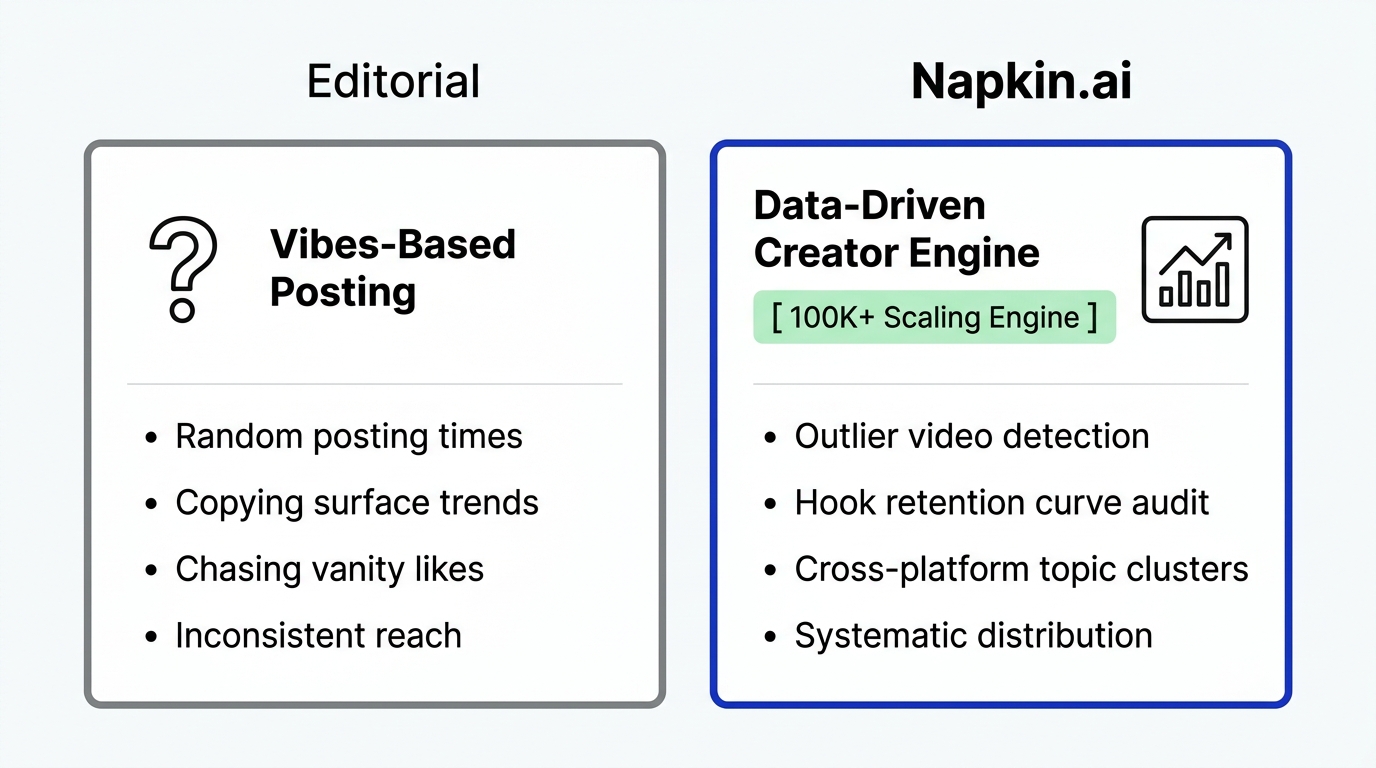
Let’s be real: your desktop is your command center. Whether you’re an individual creator or an agency managing ten different brands, the mobile workflow has massive limitations.
When you move your TikTok scheduling to a desktop environment, you gain:
- Precision Editing: It’s much easier to spot a typo in your caption or an error in your video on a 27-inch monitor than on a 6-inch phone screen.
- File Management: No more AirDropping files or waiting for Google Drive to sync. You can upload directly from your local folders where your editor saved the final cut.
- Batching Potential: You can line up a week’s worth of content in one sitting, freeing up your brain to focus on the next big idea.
![[INLINE] Comparison of manual vs scheduled workflow](https://cdn.marblism.com/PLub4PeBkVX.webp)
Method 1: Using TikTok Web (The Native Way)
TikTok offers a built-in scheduler via their website. It’s a solid starting point if you only have one account and don’t need to post anywhere else.
How to do it:
- Log In: Head over to TikTok.com on your browser and sign in.
- Access the Upload Page: Click the Upload button (the cloud icon) in the top right corner.
- Upload Your Video: Drag and drop your file. TikTok supports videos up to 10 minutes long and 10GB in size.
- Add Details: Write your caption, add hashtags, and pick your cover image.
- Toggle Scheduling: Look for the "Schedule" button. Flip it on and select your desired date and time.
- Schedule: Hit the button, and you’re set.
The Catch: TikTok’s native scheduler only lets you plan up to 10 days in advance. If you’re trying to plan a whole month, you’re out of luck. Plus, you can't use trending sounds or the built-in mobile editor features here.
Method 2: Third-Party Schedulers (The API Path)
Tools like Buffer or Hootsuite use TikTok’s official API to post on your behalf. These are great for social media managers who need a unified calendar.
The Pros:
- You can see all your platforms in one view.
- Better team collaboration features.
- Longer scheduling windows than 10 days.
The Cons:
- The "API Wall": Social platforms often limit what third-party apps can do via their API. For example, some platforms might block certain interactive stickers or advanced privacy settings.
- Stability: If the API goes down or changes, your scheduled posts might fail without warning.
Method 3: The Creator Insights Browser Extension (The Smart Way)
This is where things get interesting. At Creator Insights, we realized that relying solely on public APIs is a gamble. Some platforms make it intentionally difficult for third-party tools to post.
Our browser extension acts as a bridge. Instead of begging a platform for API access, the extension mimics human behavior in your browser. This allows you to post to 14+ platforms simultaneously: including those that usually block automation.
![[INLINE] The browser extension bridge bypassing API gates](https://cdn.marblism.com/7aPOo4g1ROc.webp)
By using the extension, you get the best of both worlds: the automation of a scheduler with the "native" feel that platforms love. It’s like having a virtual assistant who logs in and clicks "Post" for you, but without the human error.
The Perfect Workflow: From Idea to Scheduled
If you want to stop losing views and start scaling, you need a repeatable system. Here is the workflow we recommend using our Creator Canvas:
1. Research the Outliers
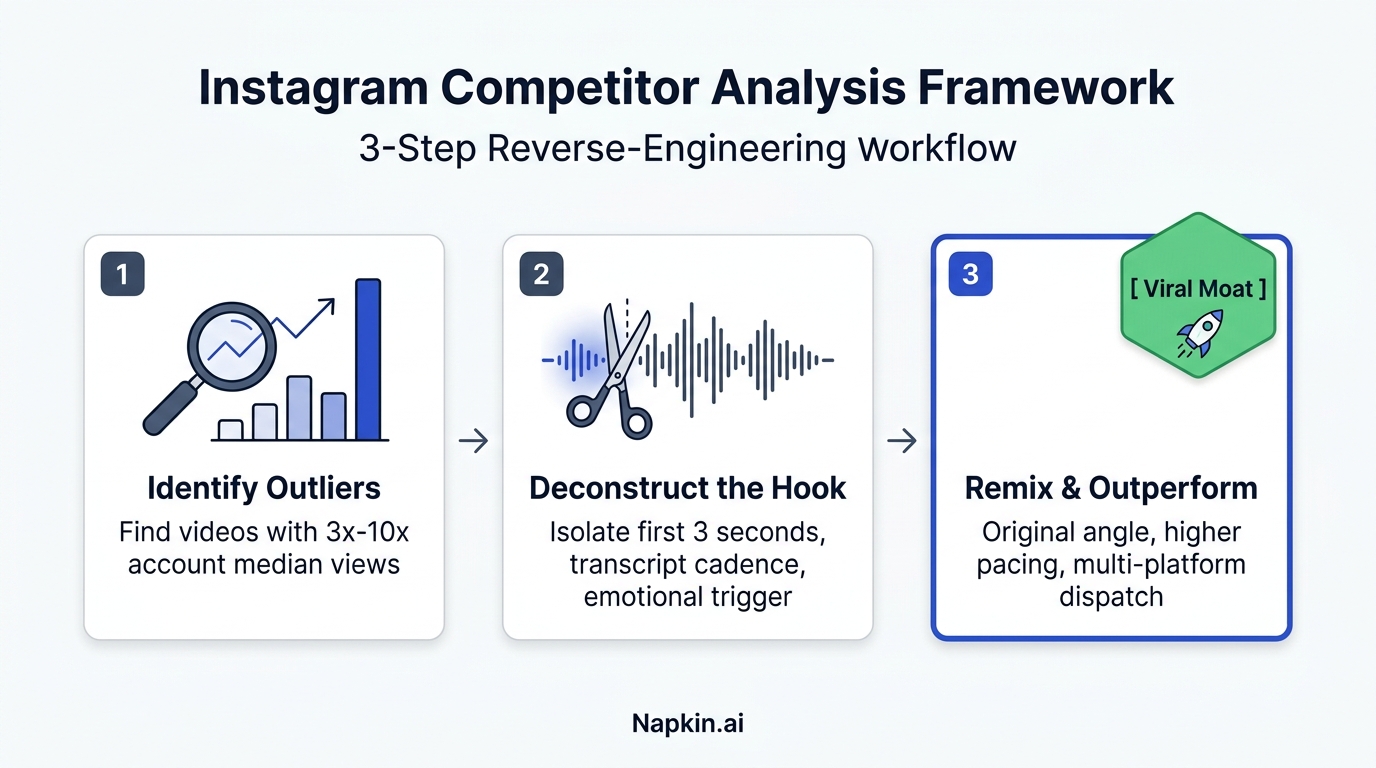
Don't just post and pray. Use our Trends Tool to find videos that are currently "outliers": content that is performing significantly better than a creator’s average. This tells you what the algorithm is currently hungry for.
2. Transcribe and Script
Found a viral video in your niche? Don't copy it: improve it. Use our scripting tool to transcribe the video, analyze the hook, and write your own version that fits your brand voice.
3. The "Creator Canvas" Plan
Instead of thinking about a "TikTok post," think about a "Content Asset." In the Creator Canvas, you can visualize how that one video will look on TikTok, Instagram Reels, and LinkedIn.
![[INLINE] Creator Canvas diagram showing one video mapping to multiple platforms](https://cdn.marblism.com/2qkG-5bCAyT.webp)
4. One-Click Distribution
Once your video is ready, you upload it once. Using the Creator Insights extension, you can schedule that single video to go out across all your platforms at the optimal times. You aren't just scheduling for TikTok; you're building an omnipresence.
Managing Your Schedule Like a Pro
When you're scheduling from desktop, it’s easy to get carried away. Here are a few tips to keep your feed high-quality:
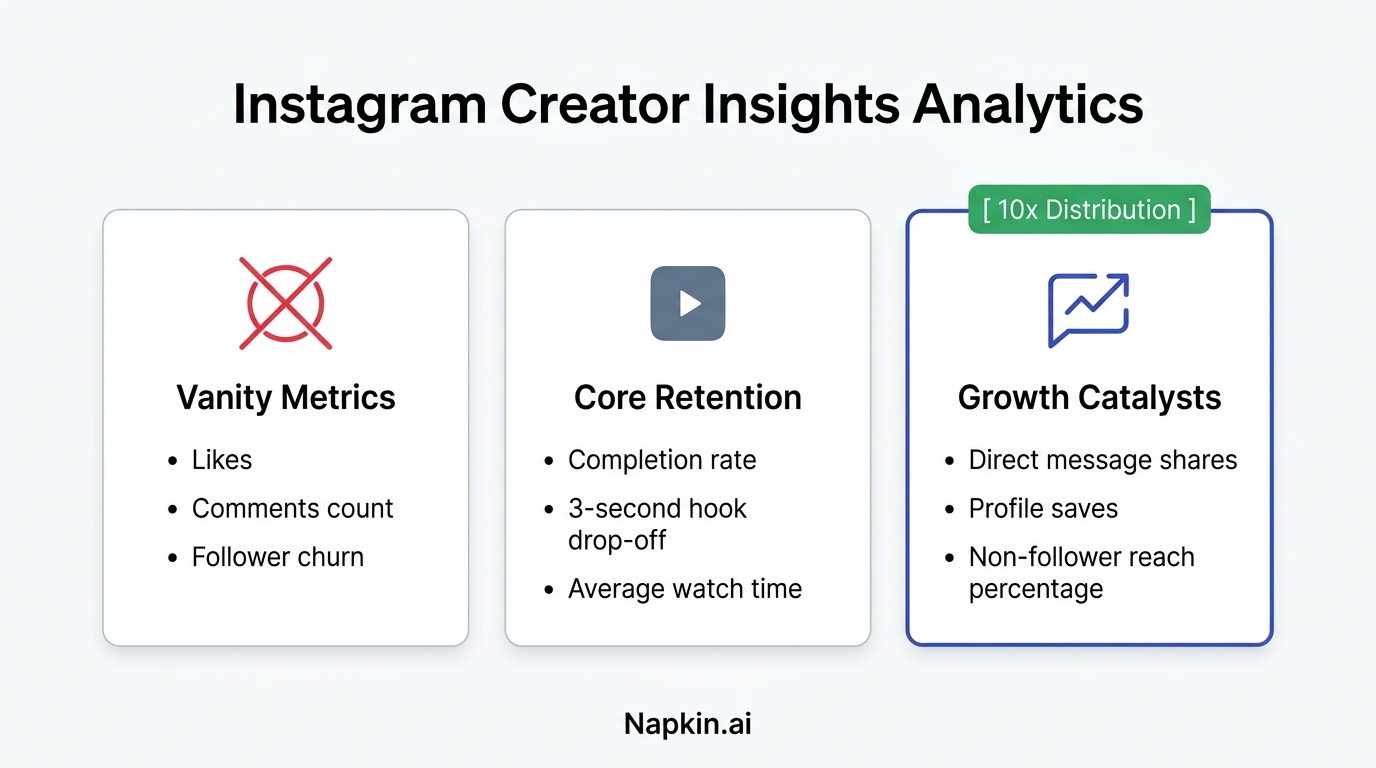
- Check Your Analytics First: Before you set a time, look at your TikTok Studio Analytics to see when your specific followers are most active.
- Don't "Set and Forget": Even if a post is scheduled, hop into the app 15 minutes after it goes live to reply to the first wave of comments. This signal tells TikTok that the creator is active and engaged.
- Vary Your Times: Don’t post at 9:00 AM every single day. Experiment with different windows to catch different segments of the global audience.
Moving Beyond Just TikTok
Scheduling for TikTok on your desktop is a great first step, but the real growth happens when you stop focusing on just one platform. The modern creator economy is fragmented. Your audience is on TikTok, but they’re also scrolling LinkedIn during work and watching Shorts before bed.
By using a distribution tool like Creator Insights, you’re not just saving time on TikTok uploads; you’re reclaiming hours of your life that used to be spent logging in and out of 14 different apps.
Ready to stop the manual grind? Check out our browser extension and see how easy it is to manage your entire social presence from a single tab.